Appearance
Change your theme
Members, course managers, and desk administrators can choose a personal theme in Settings → Appearance.
Choose a theme
- Open Settings near the bottom of the navigation. If the desktop navigation is collapsed, expand it or use the Settings gear icon.
- Under Appearance, select Modern or Editorial Ink.
- The theme applies immediately. Theme saved on this browser. confirms your preference was saved; no Save button is needed.
| Theme | Appearance |
|---|---|
| Modern | The default look: warm greens, rounded cards, and club colors, banners, and backgrounds. |
| Editorial Ink | A minimalist white-and-black design with serif headings, generous spacing, thin borders, and subtle hand-drawn accents. Club logos remain visible. |
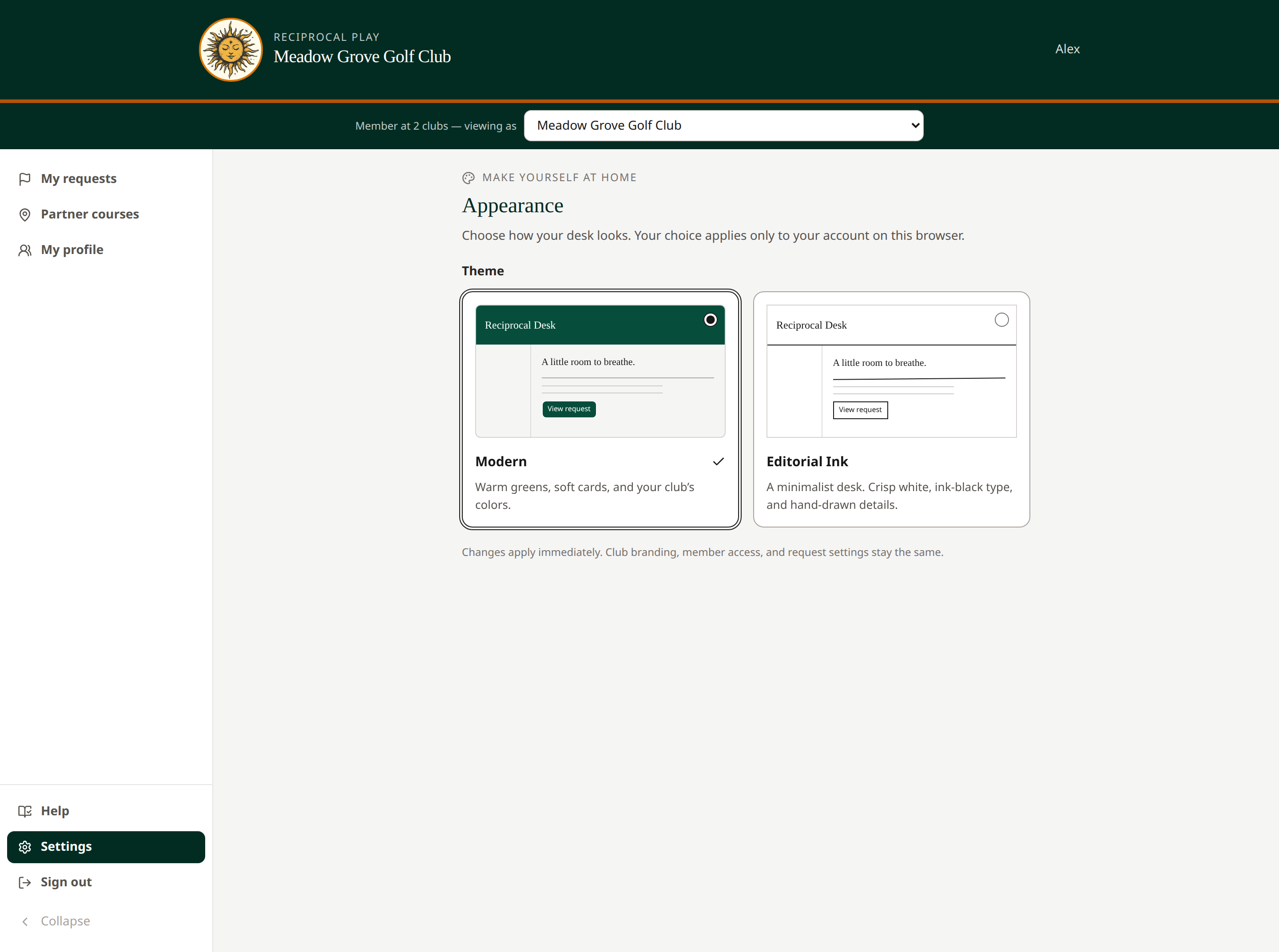 Select either preview to change your appearance. Select the image to view it at full resolution.
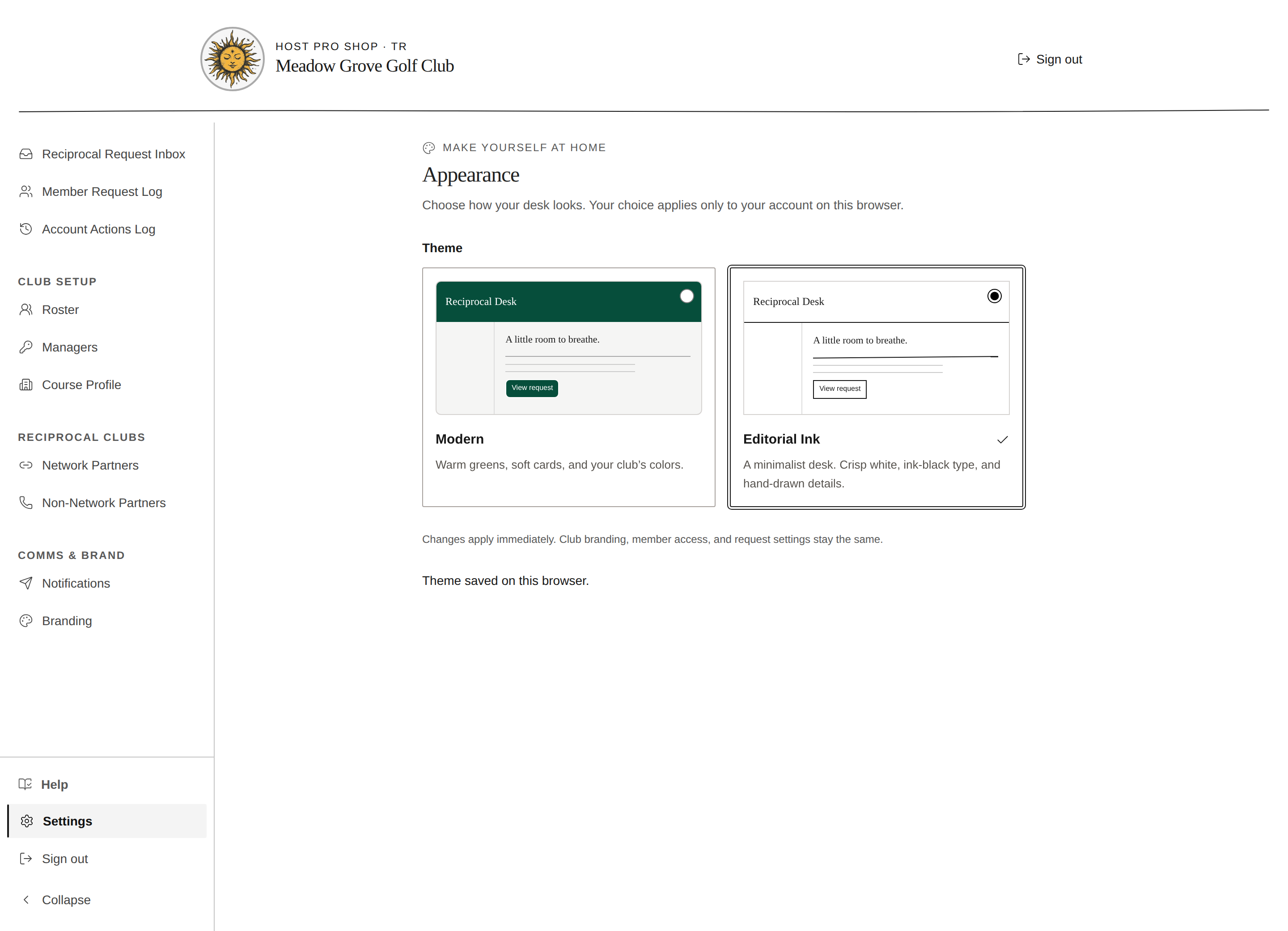 Editorial Ink changes your view of the desk, including request screens and Tee Tickets.
Change the theme on a phone
- Open the navigation using the menu button.
- Select Settings.
- Under Appearance, scroll to the theme you want and select it. On narrow screens, the previews are stacked vertically.
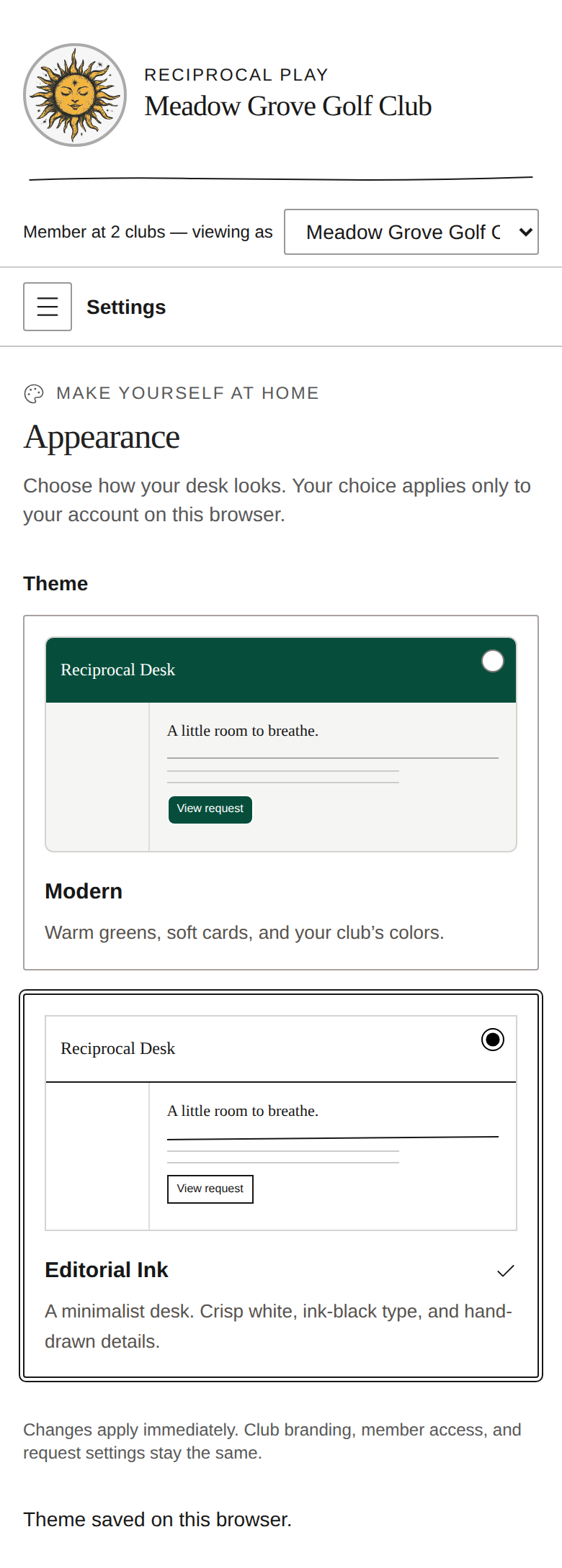 The same theme choices are available on desktop and phone.
Switch back to Modern
Return to Settings → Appearance → Modern. Your club’s saved colors, banner, and background appear again. You can switch themes whenever you like.
Where your preference is saved
Your choice is remembered for your account on this browser. Other people using the same device can choose their own theme. The preference also updates in other open tabs for the same account and site.
Choose your theme again when using another browser or device, or after clearing browser storage. Signing out does not erase a saved preference.
If you see Theme applied for now. Your browser could not save the preference., the change works in the current session but may not survive a reload. Check whether your browser allows the site to store preferences, then select the theme again.
Personal appearance and club branding
Choosing a theme does not change the club’s saved branding, notification templates, permissions, or request details. A manager choosing Editorial Ink does not change the theme for members or other staff.
Most screenshots in this help center show Modern. The controls and workflows are the same in either theme.
Related: Member profile · Course manager guide