Appearance
Understand request statuses and updates
Open My requests and select a request to see its current status and How it's going timeline.
| Status | What it means | Your next step |
|---|---|---|
| In flight / pending | One or more choices are still live. | Follow the timeline or manage your pending request. |
| Booked | A pro shop awarded a tee time. | Read the Tee Ticket and any arrival note. |
| Unbooked / declined | No live choice remains or the request expired. | Review the reasons and submit a new request with different parameters. |
| Cancelled | The pending request was stopped. | Keep it for reference or delete it. |
Find new outcomes
Booked and unbooked outcomes may appear in the updates banner. Opening a completed request marks that outcome as read. Mark all read clears all current unread outcomes; it does not delete the requests.
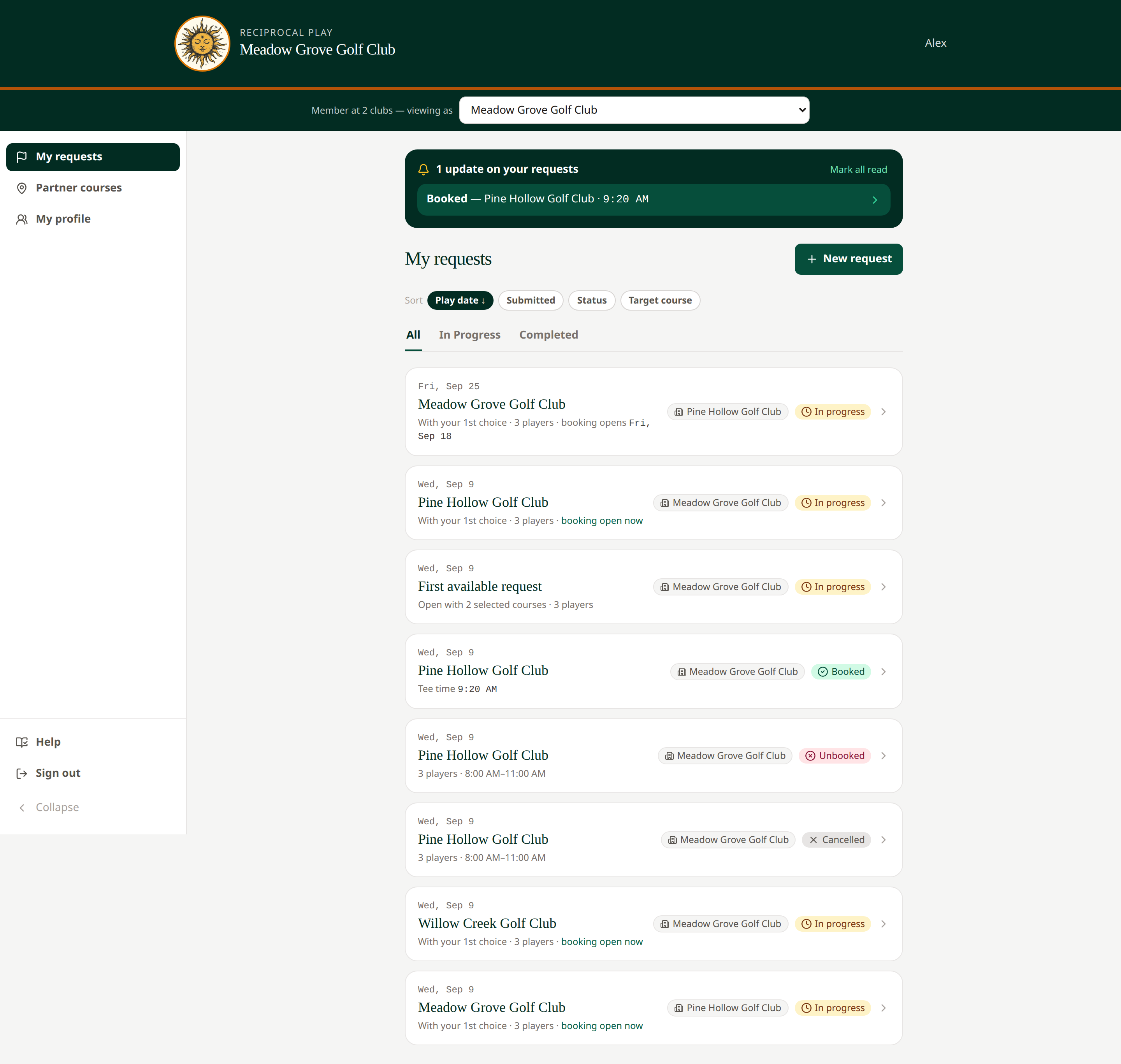 Use All, In Progress, and Completed to narrow the list.
A confirmation or final unbooked email may also be sent. A missing email does not necessarily mean the request failed: check the actual request. Pro shops can pause automatic decision emails, and email delivery can fail after a decision is saved.
Completed requests cannot be edited or deleted by members. Your home pro shop or the network administrator can reopen them when appropriate.
Related: View your Tee Ticket · Edit a request · Notifications