Appearance
Customize member notifications
Open Notifications to manage confirmation and denial messages.
Customize a template
- Choose Confirmation or Denial.
- Select View on a system template to read it.
- Select Clone to create an editable copy.
- Edit its name, subject, and body.
- Place the cursor in the subject or body and select a dynamic-field button to insert a value such as member name or tee time.
- Select Preview with sample data and check the rendered message.
- Select Save template.
- Select Set as active on the copy when it is ready.
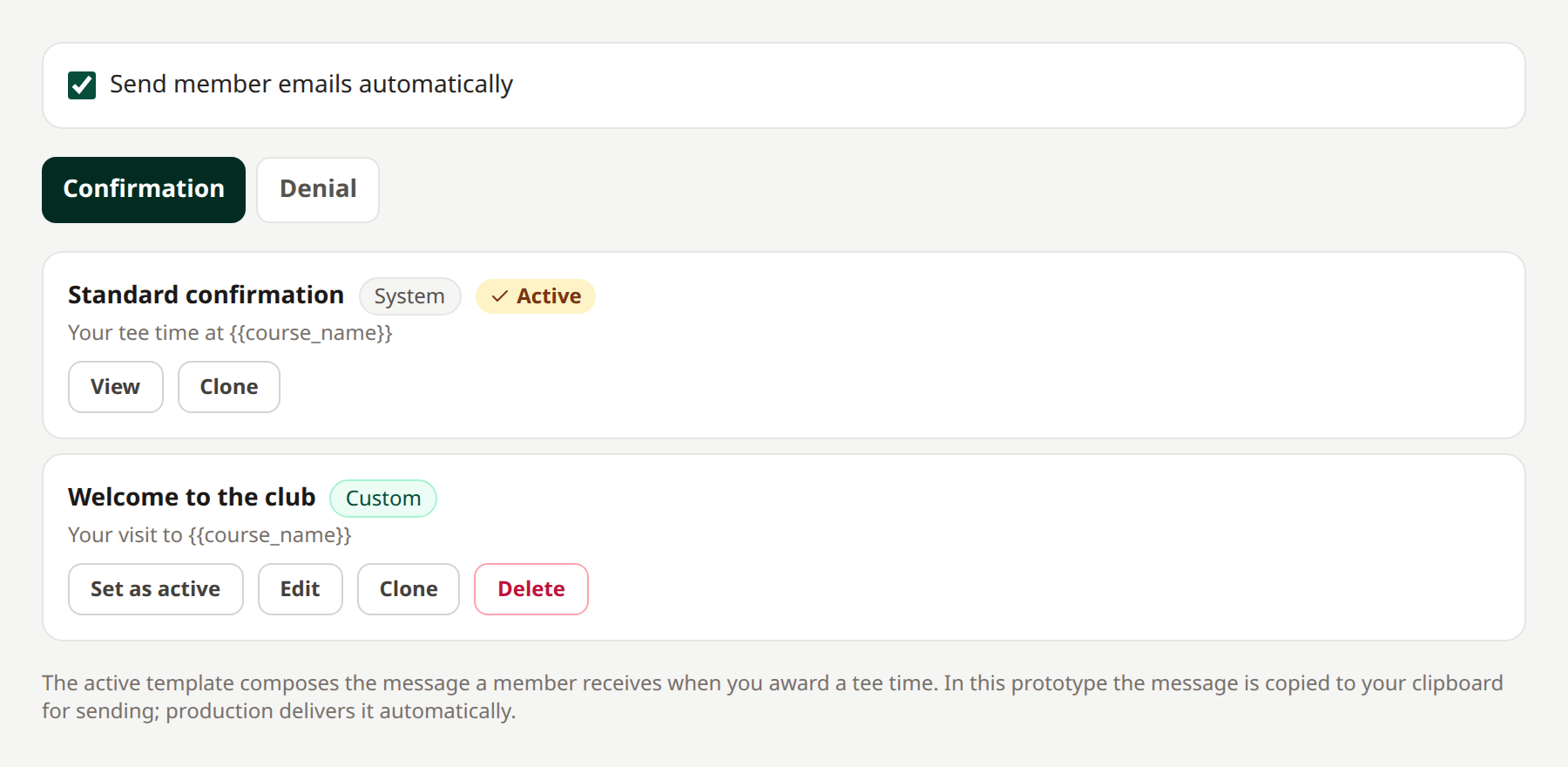 Saving a custom template and activating it are separate actions.
System templates cannot be edited or deleted. Only one template of each type is active. Deleting an active custom template restores the corresponding system template as active.
Automatic and manual messages
Leave Send member emails automatically checked to send eligible decision emails. Clear it to pause them for this course. On a request, expand Member notification and use Copy to clipboard to copy its subject and body into your email client.
Sequential and First Available requests have different denial-notification behavior. First Available sends a combined final unbooked message when all choices are exhausted; that combined message does not use the individual denial template.
A saved decision remains recorded even if email delivery fails. Check the request status and Activity when a member reports no email. A displayed preview or “Member notified” label is not delivery confirmation.
Related: Award or deny · Request statuses
Available dynamic fields
The Available dynamic fields panel shows supported fields as compact chips that wrap across rows. Hover over a chip to see its template code, or select one to display the code beneath the chips. It appears beside templates on wide screens and below them on smaller screens. While editing a custom template, place the cursor in Subject or Body and click a field to insert it. Otherwise, click a field to copy its code. Clone system templates before customizing them. Preview with sample data before saving.