Appearance
Customize course branding
Open Branding to personalize your course workspace and Tee Tickets.
- Choose the Brand color with the color picker or enter a valid hex color.
- Under Logo, upload an image or paste an image URL. A square image works best.
- Under Header banner, upload a wide image or paste its URL.
- Choose a light Page background, or leave it blank for the default.
- Review the live Preview.
- Select Save branding.
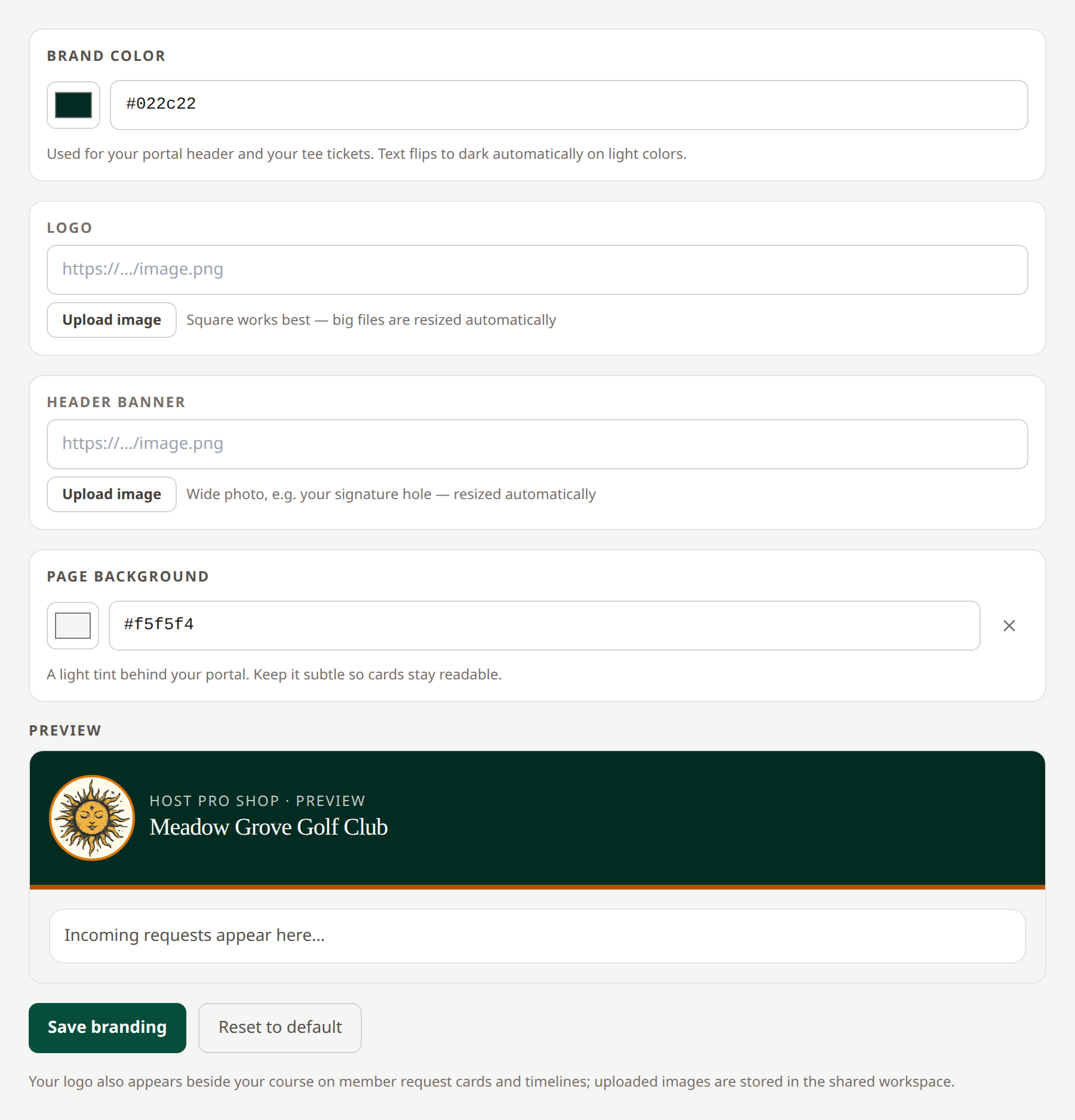 Check text readability in the preview. Open full-size image.
Uploads larger than 8 MB are rejected. Images are resized automatically: use a clear source image and inspect the result. Use the × beside an image to remove it before saving.
Reset to default restores the default branding immediately. Your course logo also appears in member request cards and timelines; the brand color and logo appear on Tee Tickets.
Branding and personal themes
Branding saves the club’s colors and images. Settings → Appearance lets each person choose a personal theme.
Modern shows the usual club colors, banner, and background. Editorial Ink uses white surfaces and black text in your view of the desk and Tee Tickets; the club’s saved branding remains available when you switch back to Modern. Logos remain visible. Selecting a personal theme does not change how other members or staff view the club.
Related: Course profile · Tee Ticket