Appearance
Import a CSV roster
Use a complete roster export with a header row and an email for every member. Include separate first and last names when possible. Other columns can become custom roster fields.
- Open Roster and find Import a roster (CSV).
- Select Upload .csv file, or paste CSV text and select Review pasted rows.
- In Confirm the column mapping, select the email, first-name, and last-name columns.
- If your export has a combined name, select Names are in a single column and map that column. Combined names are kept together rather than automatically split.
- Map each extra column to an existing field, a new field, or skip it.
- Review Preview — first golfer as it will import.
- Select Import … rows.
- Read the result counts for added, updated, skipped, and flagged members.
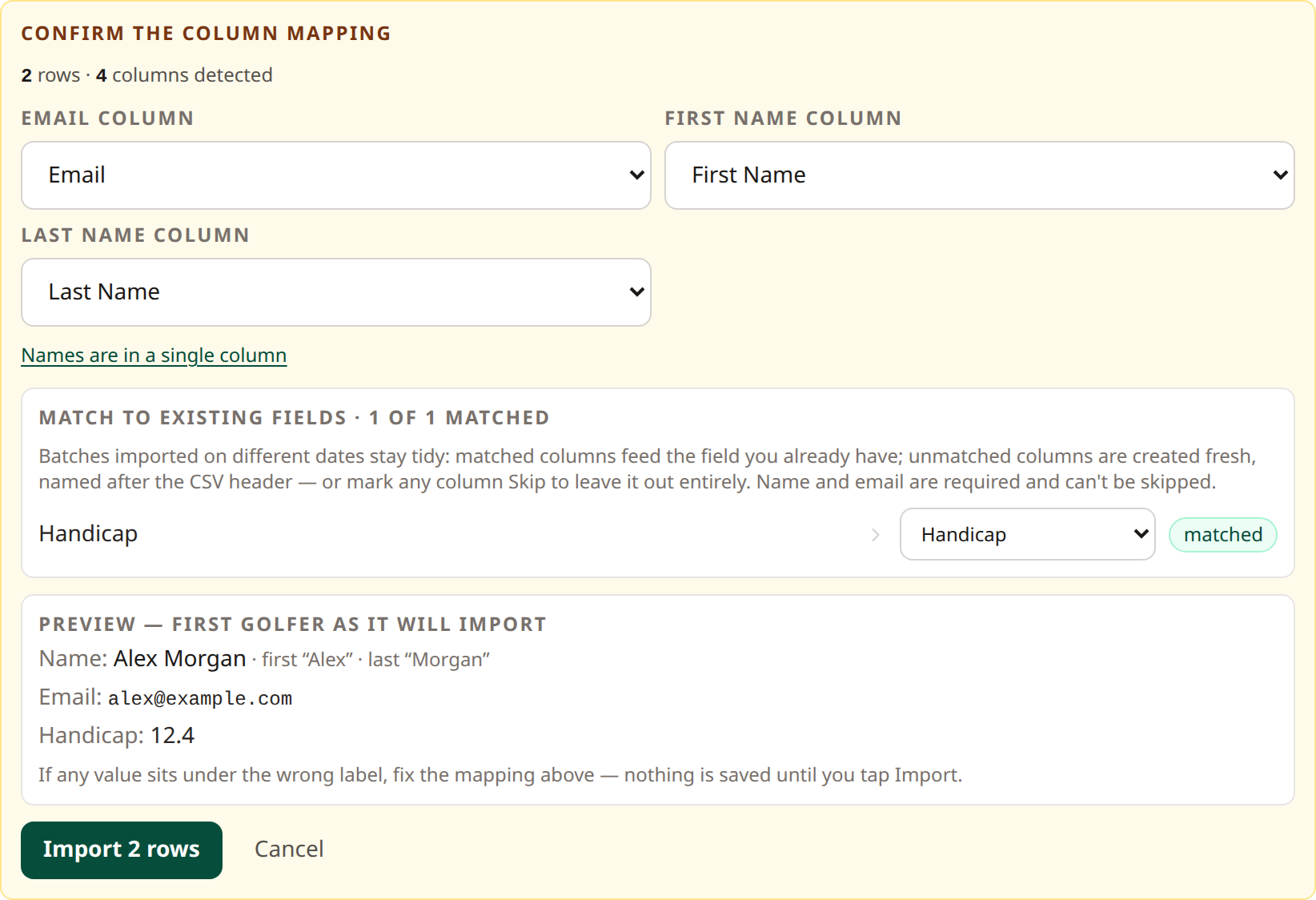 Correct the mapping before selecting Import. Open full-size image.
Imports match existing people by email and merge the provided information. Existing members absent from a nonempty full-roster import are flagged for review, not automatically removed. A partial file can therefore flag people you did not intend to change.
If an email column cannot be detected or identity columns overlap, correct the file or mapping. Rows without usable member information may be skipped; review the result instead of assuming every row imported.
Related: Review roster flags · Custom fields · Golf Genius sync