Appearance
Use the request queue
Open Reciprocal Request Inbox to see the work currently assigned to your pro shop.
| Section | What to do |
|---|---|
| Outgoing calls you need to place | Call the non-network host and record its answer. |
| Your decision needed | Review and award or deny an actionable request. |
| Window opens soon | Monitor requests that are waiting for the sequential booking window. |
| Recently decided by you | Review recent answers and member messages. |
- Select Refresh to reload current request information.
- Use available sorting controls to prioritize the list.
- Switch between Your decision needed and Outgoing calls you need to place using the tabs. Other sections can be expanded or collapsed using their headings.
- Open a request card.
- Check the member's home club, play date, time window, party, notes, and choice timeline before acting.
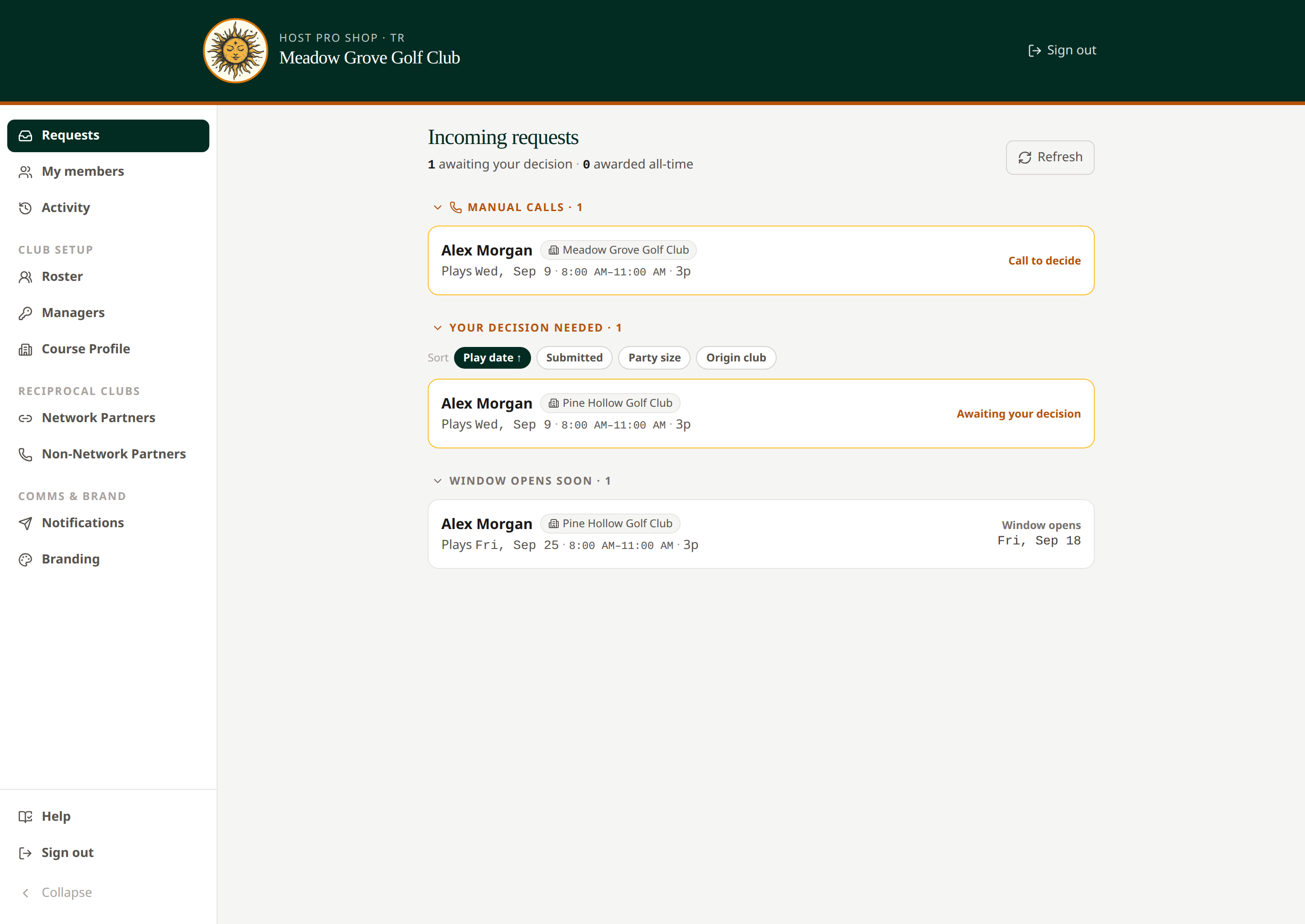 Queue sections distinguish work ready for a decision from requests waiting for a booking window.
First Available requests can be actionable immediately, regardless of the sequential window. Another course may book one while you are reviewing it. If an action reports a conflict, refresh and review the outcome.
Your own members' requests are also available through Member Request Log, which provides the home-pro-shop controls.
Related: Award or deny · Manual calls · My members
When a manual call is denied and the next choice is a network club, the call leaves your task queue. The network club’s manager awards or denies it and sends the decision notification. You can still track your member’s request in Member Request Log.
Long request lists show 50 requests per page. Use Previous and Next below the list to move between pages. The range shows how many requests match. Filtering, searching, and sorting apply to the full list and return you to page one.