Appearance
Connect and sync Golf Genius
Use RosterSync · Golf Genius on the Roster page to synchronize the club's complete master roster. You need the club's Golf Genius API key.
Connect
- Open Roster and scroll to RosterSync · Golf Genius.
- Enter the club's API key.
- Select Save key.
- Verify the status says Configured · nightly sync enabled.
- Select Sync now for an initial synchronization.
- Review the last-sync status and added, updated, reactivated, deactivated, and skipped counts.
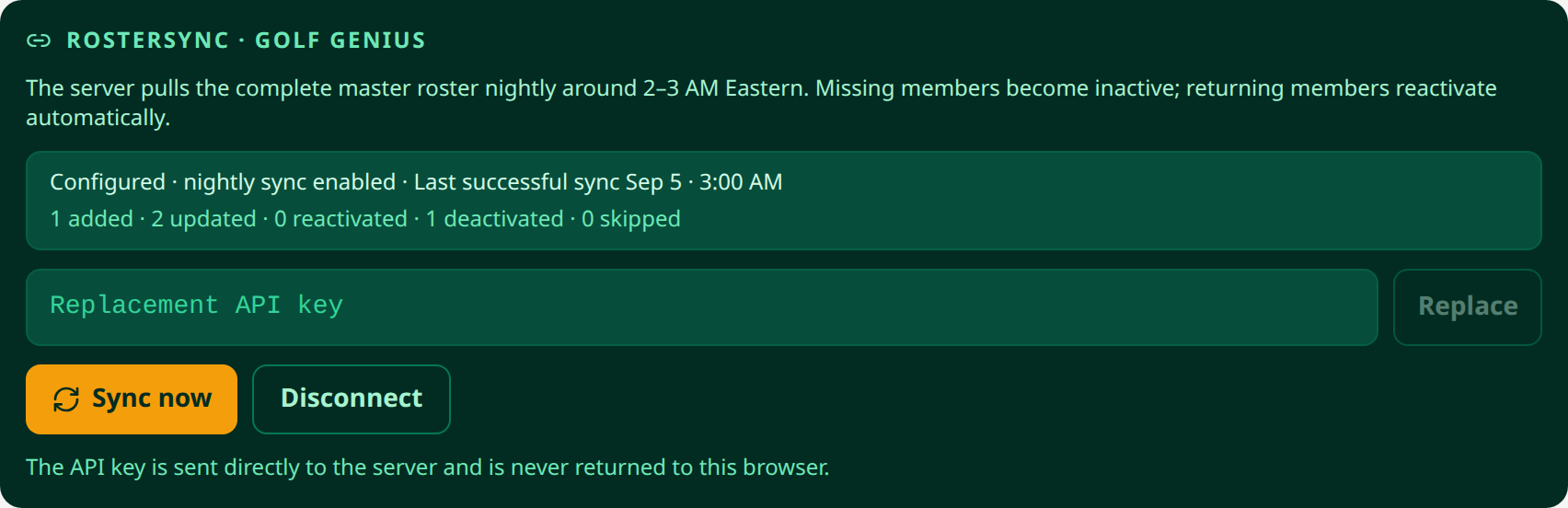 Review the result counts after each manual sync. No real key is used in this example.
Understand membership changes
A successful complete sync makes missing members inactive. Returning members reactivate automatically. This differs from CSV import, which flags absent people for review.
The scheduled sync runs daily. Use Sync now if you need an immediate update; the interface displays the most recent result. Avoid relying on an exact Eastern-time minute for the scheduled job.
Replace or disconnect
Enter a replacement key and select Replace to update credentials. To stop scheduled synchronization, select Disconnect and Confirm disconnect. Disconnecting does not automatically remove roster members.
If synchronization fails, read the displayed error and check the key and upstream roster. Review inactive members after successful syncs. Do not paste API keys into support messages or screenshots.
Related: Member roster · Inactive access troubleshooting