Appearance
Award or deny a tee-time request
Open Reciprocal Request Inbox, select a request that needs your decision, and review its date, acceptable time window, players, member note, and any closure warning.
Award a tee time
- Select Award a tee time.
- Enter the confirmed Tee time.
- Add Additional times if the group needs them.
- Optionally enter a Note to the member, such as arrival instructions.
- Select Confirm — booking complete, notify ….
- Review the booked outcome and Tee Ticket.
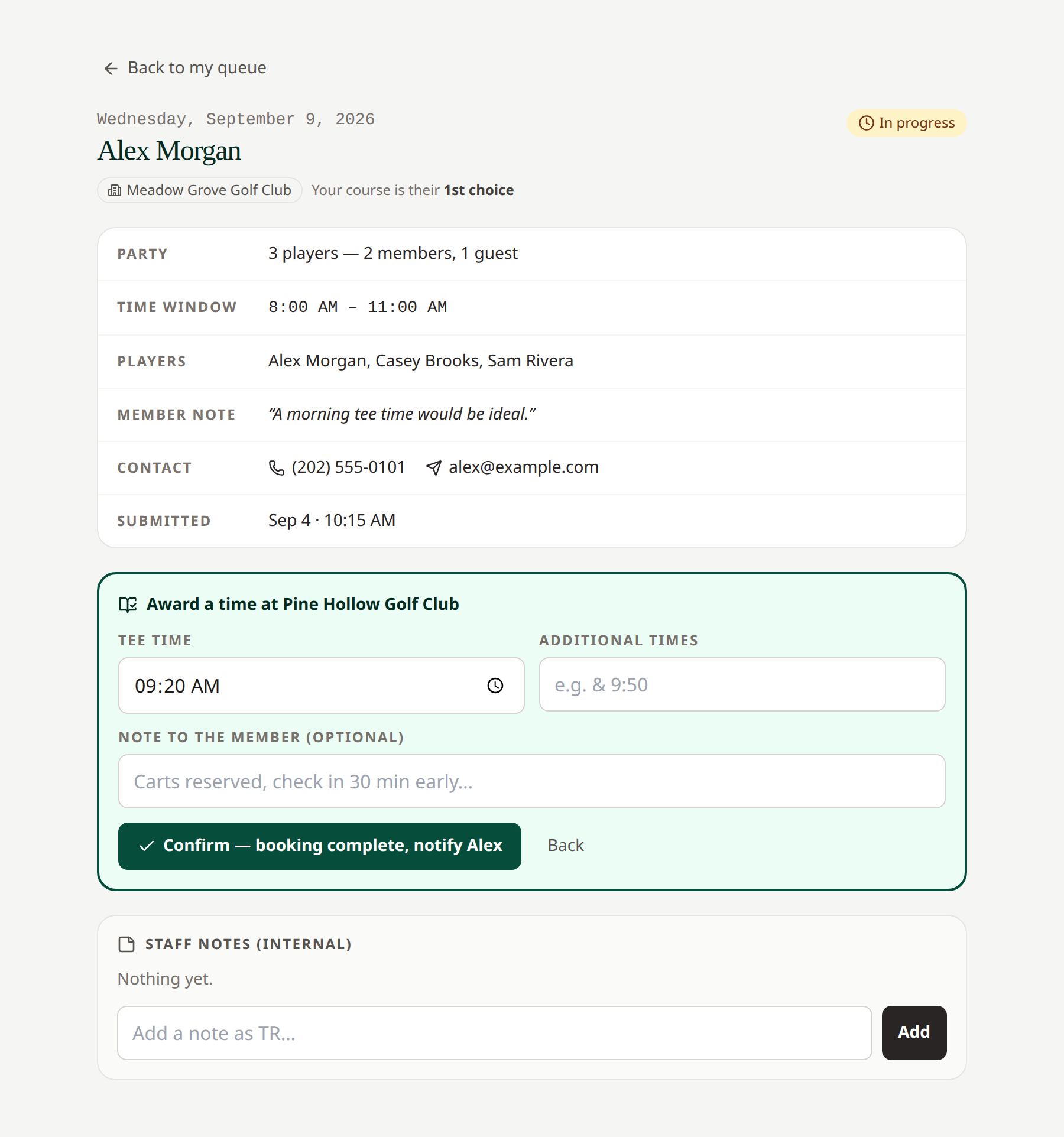 Enter the time the pro shop has actually agreed to provide.
The award completes the request. In First Available mode, only the first successful award wins; other choices close. If another course has already acted, refresh before trying again.
Deny a request
- Select Deny this request.
- Choose a Reason (shared with the member).
- Optionally add a note.
- Read what the confirmation button says will happen next.
- Confirm the denial.
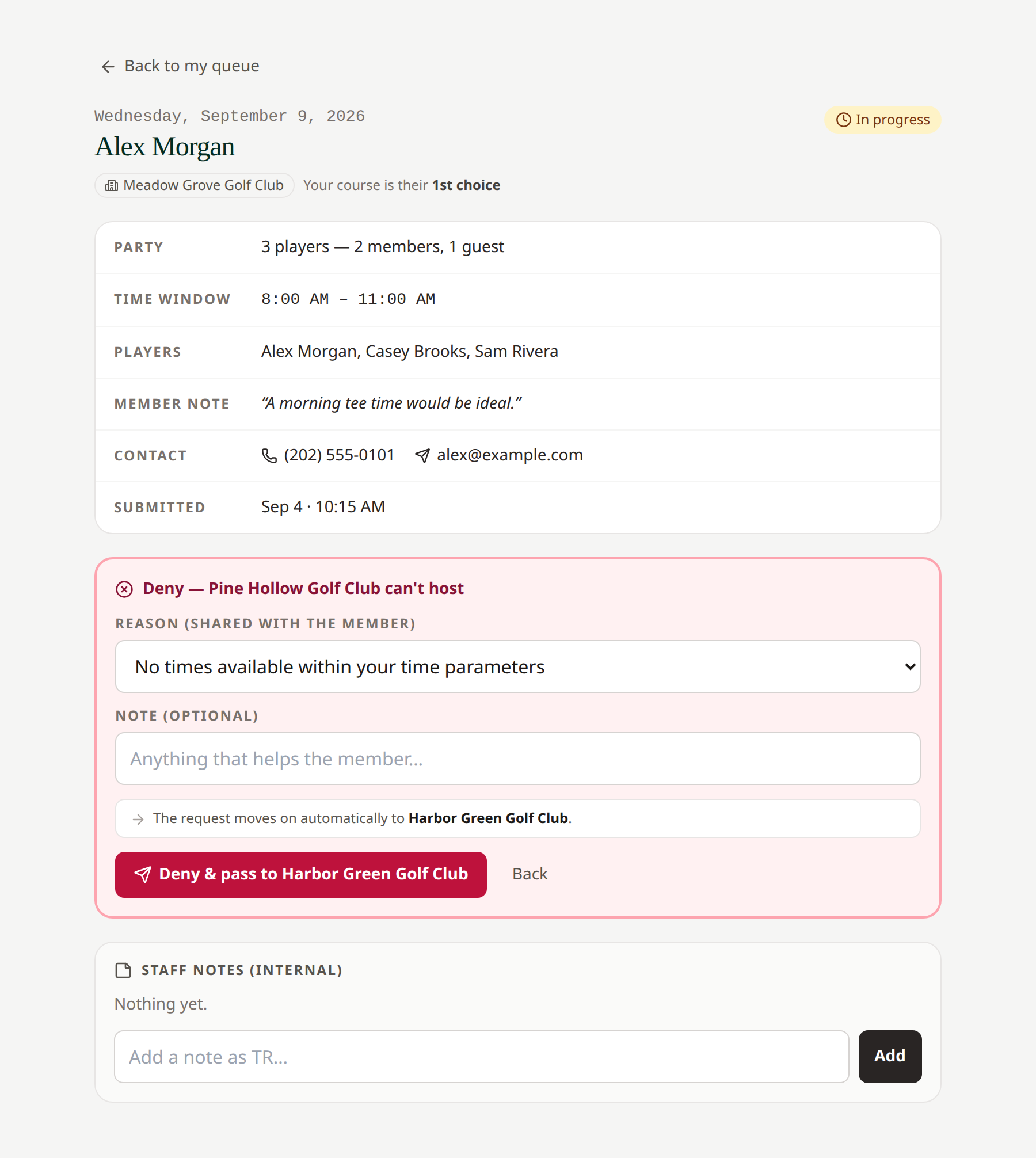 A denial can advance a sequential request, close one First Available choice, or finish the request as unbooked.
A First Available denial leaves other live courses active; the final unbooked message is sent when no live course remains. Sequential denial can pass the request onward. Do not treat a member-notification label as proof the email reached the inbox.
Related: Notifications · Routing · Manual calls