Appearance
Manage your member roster
An active roster membership lets a member access that club's reciprocal play workspace. Open Roster to maintain it.
Add a member
- Find the single-member entry fields beneath the roster.
- Enter the person's name and email.
- Select Add to roster.
- Verify the person appears in the active list.
New member accounts are invited by email. Existing accounts are matched by email. If an email is already on the roster, open its existing row instead of adding a duplicate.
Find and edit a member
- Choose Active or Inactive.
- Search by name, email, or a custom field.
- Select a column heading to sort.
- Open a row to see all details.
- Edit available name and custom-field values, then save.
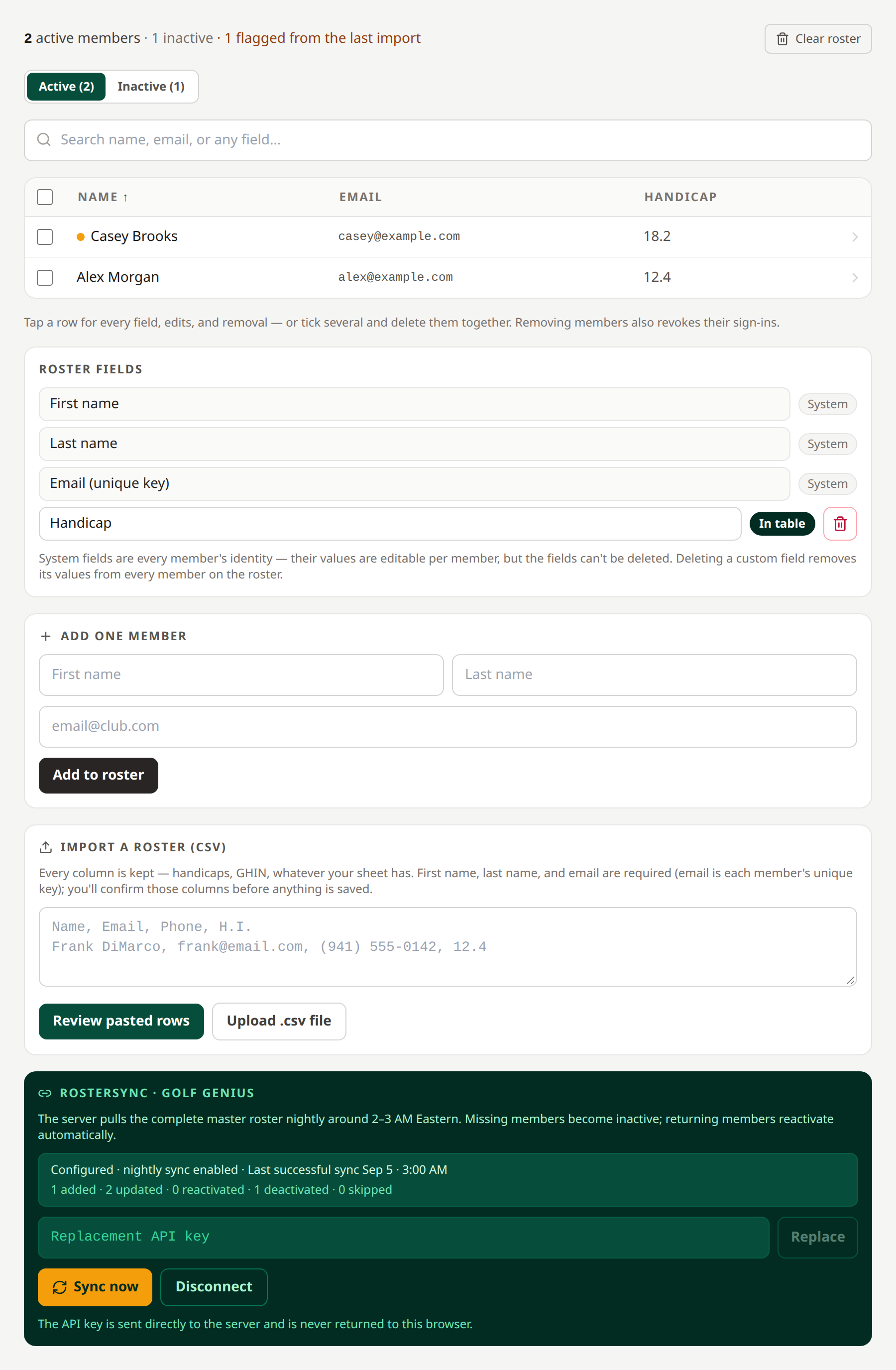 Open a row for its complete information. Open full-size image.
Review flags and inactive members
A missing-from-import flag means the person was absent from the last CSV import. Open the row and choose Keep — clear flag if they should stay. A flag is not the same as inactivity.
Golf Genius synchronization can make missing members inactive and reactivate returning members. Review the Inactive list and correct the upstream roster before the next sync.
Remove members
Use the removal control on a member's details, select multiple rows and use the bulk deletion control, or confirm Clear roster to remove the entire roster, including inactive entries. Check the selected names before confirming.
Removing a membership removes access through that club. Someone with another active club membership can still use that other club. Staff accounts have separate role rules.
Related: CSV import · Roster fields · Golf Genius
Members imported through Golf Genius can select First time here? Activate your account on the sign-in page, using their active roster email. They receive an email link to set their password; the sync does not send invitations to the entire roster.