Appearance
Pay for a booking
Some partner courses require payment when a tee time is confirmed. When enabled, the course choice shows the price per player. The requesting member pays for all members and guests in the party.
After an award, your tee time is Booked, with a separate Payment due balance. The confirmation email contains the payment link and total.
- Open the email link, or open My requests and find the booking.
- Sign in using the member account that submitted the request.
- Select Pay now on the request card or booking details. Complete payment on Stripe's checkout page.
- Return to the booking. Once payment is confirmed, it shows Paid and the Pay now button disappears.
You can use the booking link at the course without searching for the email. If payment status has not updated yet, select Refresh payment status. A checkout error does not cancel your confirmed tee time. Payment is due before play.
The email link continues to open your booking even if an earlier checkout expires. If the app shows Payment processing, wait and refresh before trying again. Contact the desk if it asks for payment review.
Request a refund
On a paid or partially refunded booking, select Request a refund. Enter your reason (up to 2,000 characters), then select Submit refund request. Your reason is shared with the network administrator and the clubs involved.
The booking shows Refund request submitted — awaiting review. After the administrator reviews it, their response appears here. One refund request is recorded per payment; contact the desk if you need to follow up after review. Submitting a request does not cancel your tee time or automatically refund your payment.
Refunds are processed through Stripe and appear as Partially refunded or Refunded in the booking. A refunded payment does not itself cancel the tee time.
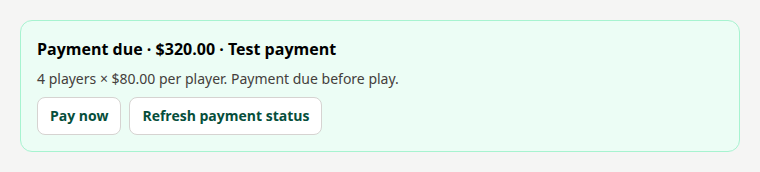 Fictional example in test mode.