Appearance
Add and maintain network courses
Add or edit a course
- Open Courses.
- Select Add course, or select the pencil beside an existing course.
- Enter the course name.
- Set its booking window between 1 and 30 days.
- Enter phone, address, and availability notes.
- Select Save course.
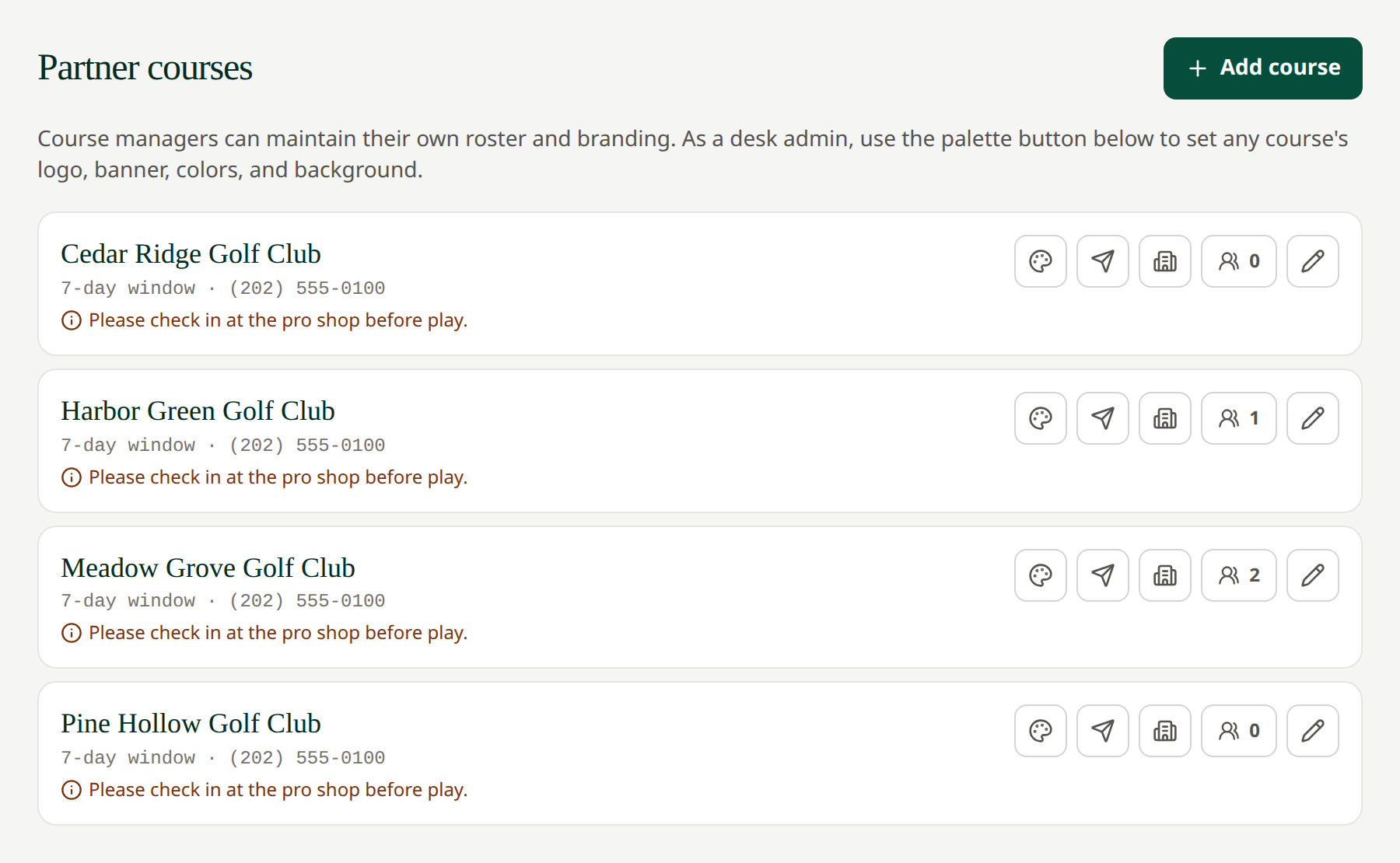 Use the controls beside each course to manage its setup.
Maintain course settings
The palette opens Branding, the send icon opens Notifications, the building icon opens Course Profile, and the member-count button opens the Roster.
These panels use the same workflows as the manager workspace. A booking-window change in the profile may ask you to confirm its effect on open requests.
Delete a course
Open the course editor, select Delete, and confirm. Deletion can be blocked when requests or staff accounts still reference the course. Review those references rather than assuming the button removes all related records.
Non-network clubs are maintained through their owning manager's Non-Network Partners page.
Related: Staff · Network partnerships